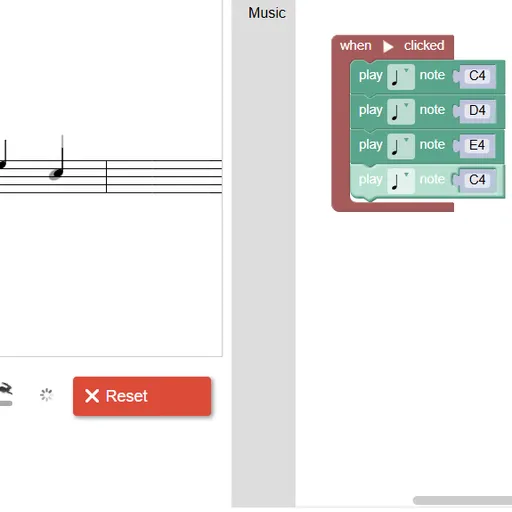
Block Code Music swaps mazes and robots for a melody. You program notes instead of steps, and when the program runs, you hear it. A staff on the left shows the tune you are aiming for in gray, and your notes appear on it in black as they play. Adapted from Google’s open-source Blockly Games, it uses one well-known round to teach a key coding idea: functions.
Building a Tune
Everything you write sits inside a “when Run clicked” block. Drag in “play note” blocks, choose the pitch and the length for each, and press Run Program. The game plays your notes and compares them with the target. When they match, it shows the JavaScript your blocks became and offers the next level.
Why Functions Matter Here
Level 1 is just four notes. Level 2 asks you to play them twice without adding more note blocks. The only way is to put the four notes in a function and call it twice. The levels after that add more functions for each new phrase until the whole melody is there.
Repeating a phrase is what songs do all the time. That makes music a natural fit for learning how to name a piece of code once and reuse it.
Instruments, Rests and Rounds
Once the melody is done, new blocks arrive. A set-instrument block switches the sound, and a rest block adds a pause. The last target levels let you use several start blocks at once. Delay each one with rests and the voices overlap into a round. Level 10 has no target, so you can compose freely.
How to Control Block Code Music
| To do this | On a keyboard | With a mouse | On a touchscreen |
|---|---|---|---|
| Insert note, rest or function blocks | — | Open the Music category and drag a block onto the workspace | Tap the category, then drag out a block |
| Set a pitch | Type a note name like D4, then press Enter | Click the note name and choose a line on the mini staff | Tap the note name and choose a line |
| Set the note length | — | Click the note symbol shown on the block | Tap the note symbol on the block |
| Play or halt your tune | — | Click Run Program, and later Reset | Tap Run Program, and later Reset |
| Adjust playback speed | — | Slide the tempo slider | Drag the tempo control |
Helpful Habits
- Give functions clear names. “Part one” and “part two” keep a long program readable.
- Check the staff. Gray notes mark what is still missing.
- Change length, not count. One phrase ends on a longer note, so edit that block instead of adding another.
- Space out the voices. In the round, rests set how far behind each part starts.
- Slow the tempo to debug. The slider makes mistakes easier to hear.
Before You Play
Nothing makes sound until you press Run Program, and Reset stops it at once. Mouse or touch works for blocks, and a keyboard lets you type note names like D4. For a visual twist on the same ideas, try Block Code Turtle Art, or see all puzzle games.
Last played and checked by SZ Games: